A number for every drive
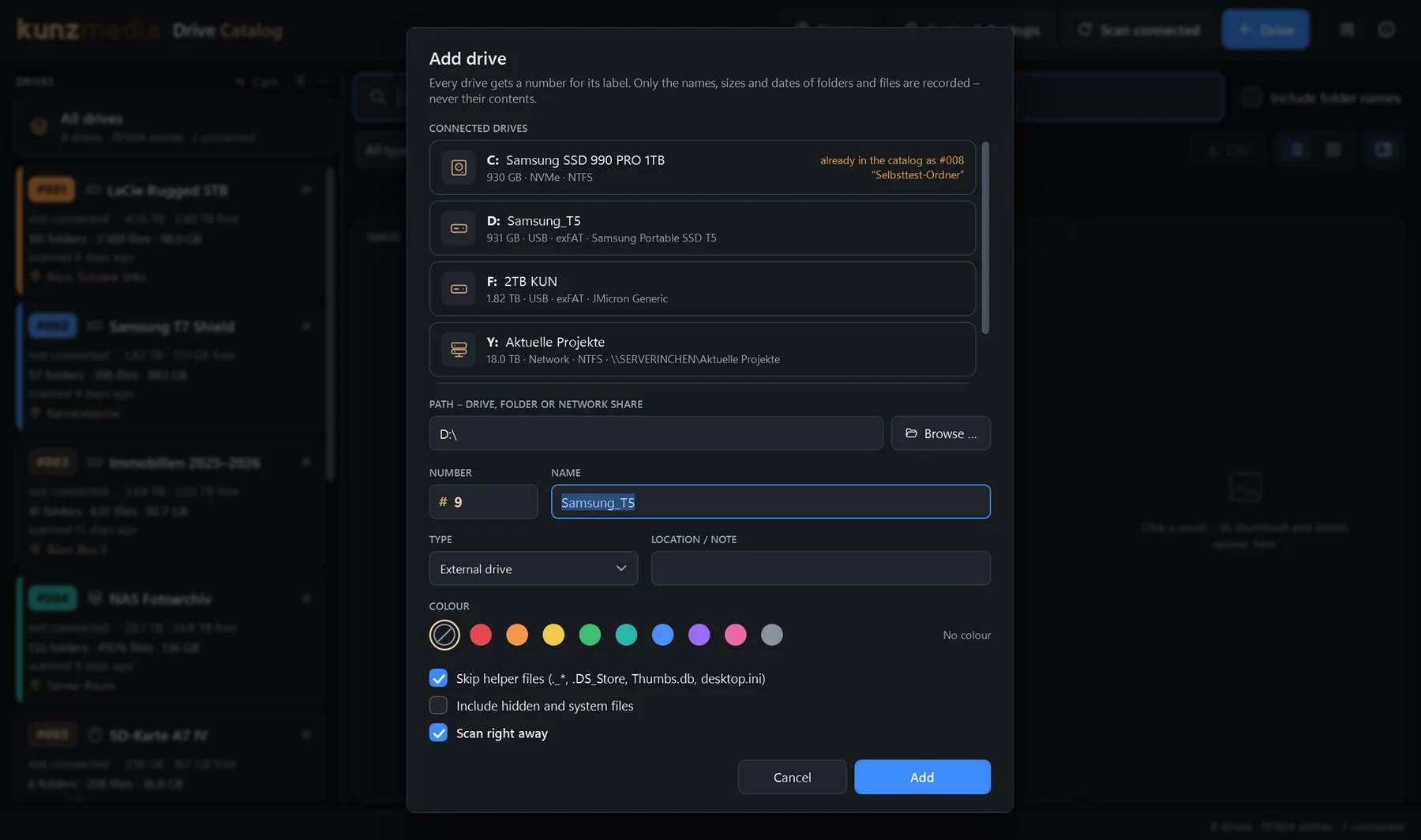
#001, #002 … – automatically the next free number, plus name, type and location (“office, box 2”). The number goes on the drive as a label.
Drive catalog for Windows
KunzMedia Drive Catalog gives every USB stick, external drive, memory card and NAS share a number and records all its folders and files. After that, any file is found in a split second – even when the drive is sitting in a cupboard.
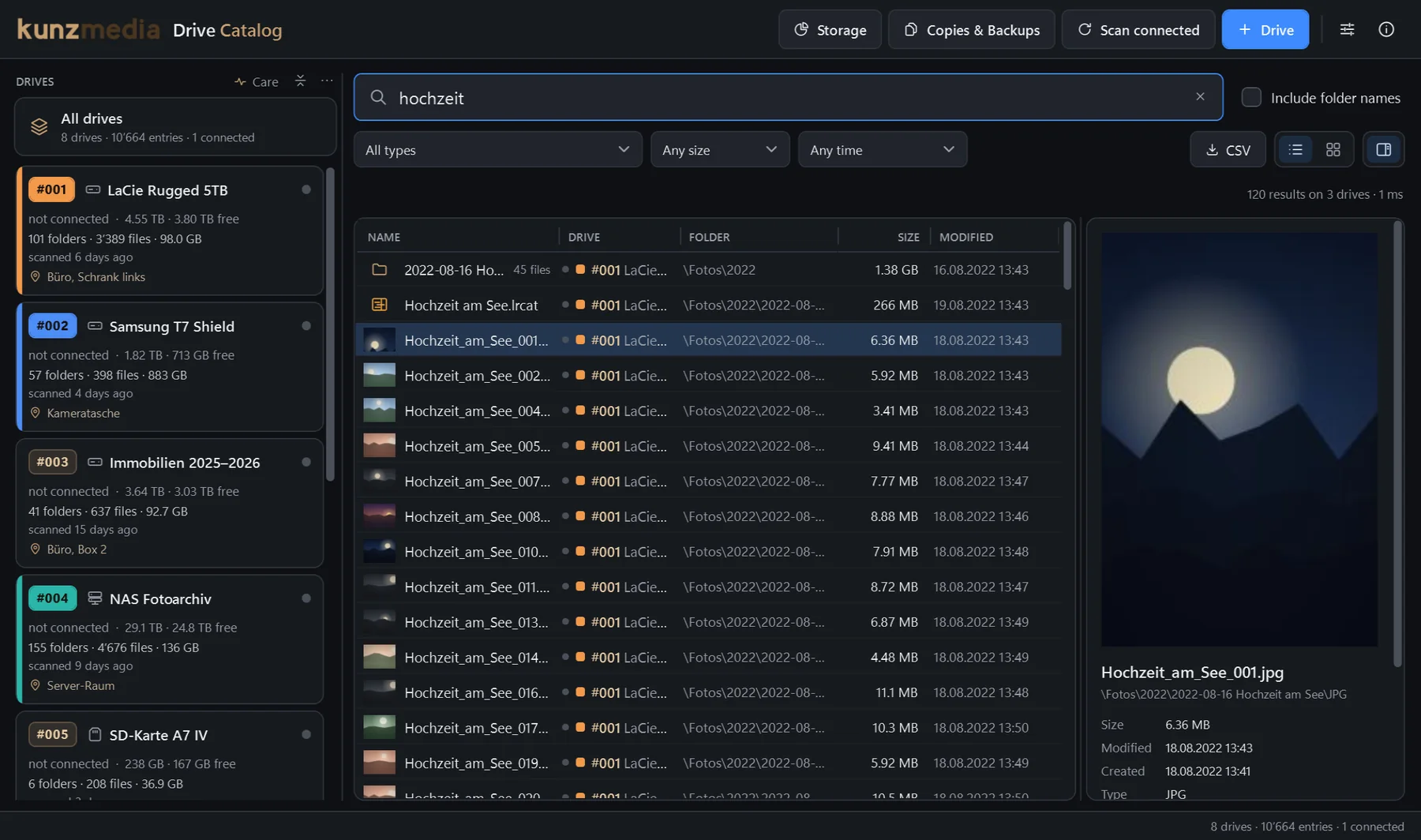
Search
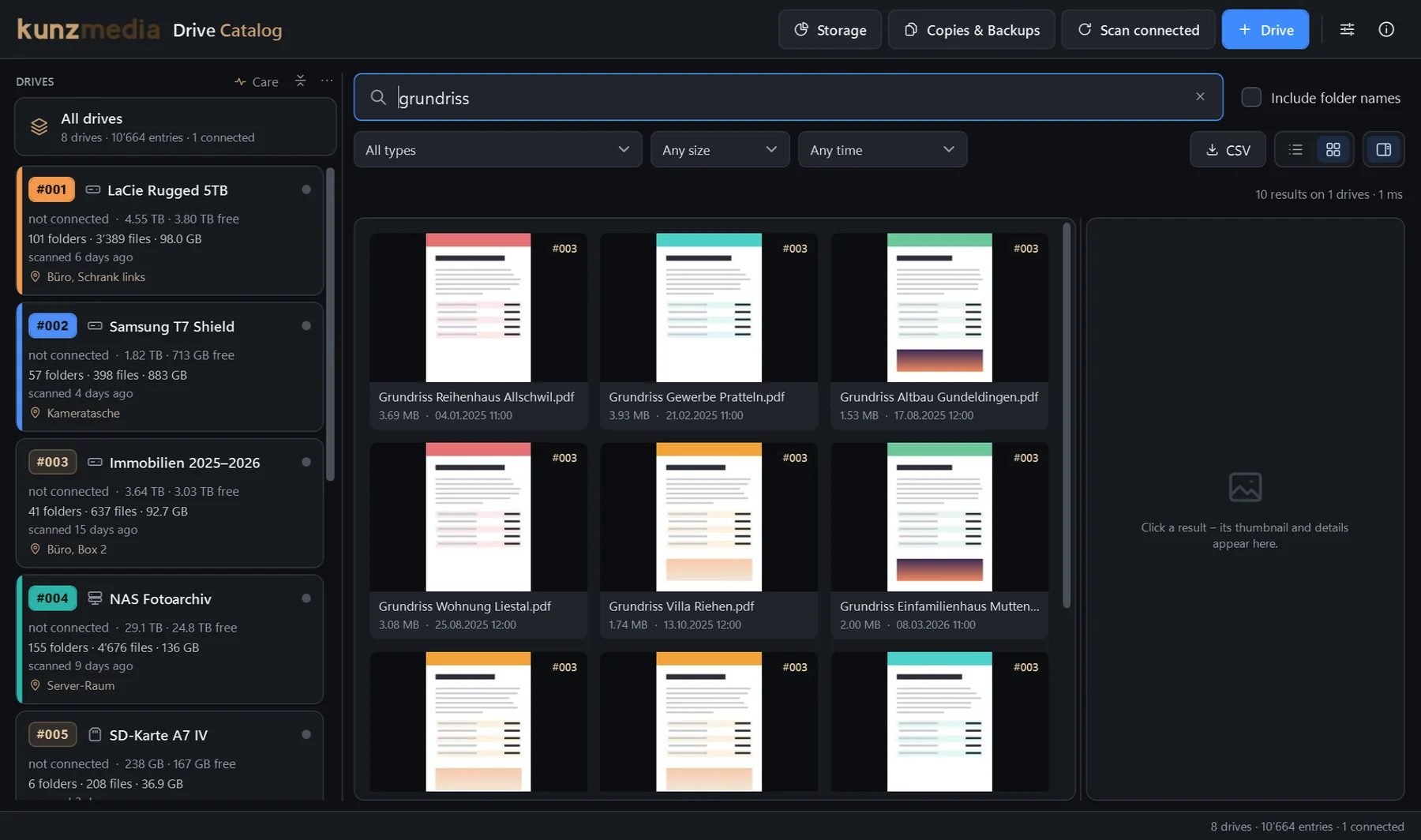
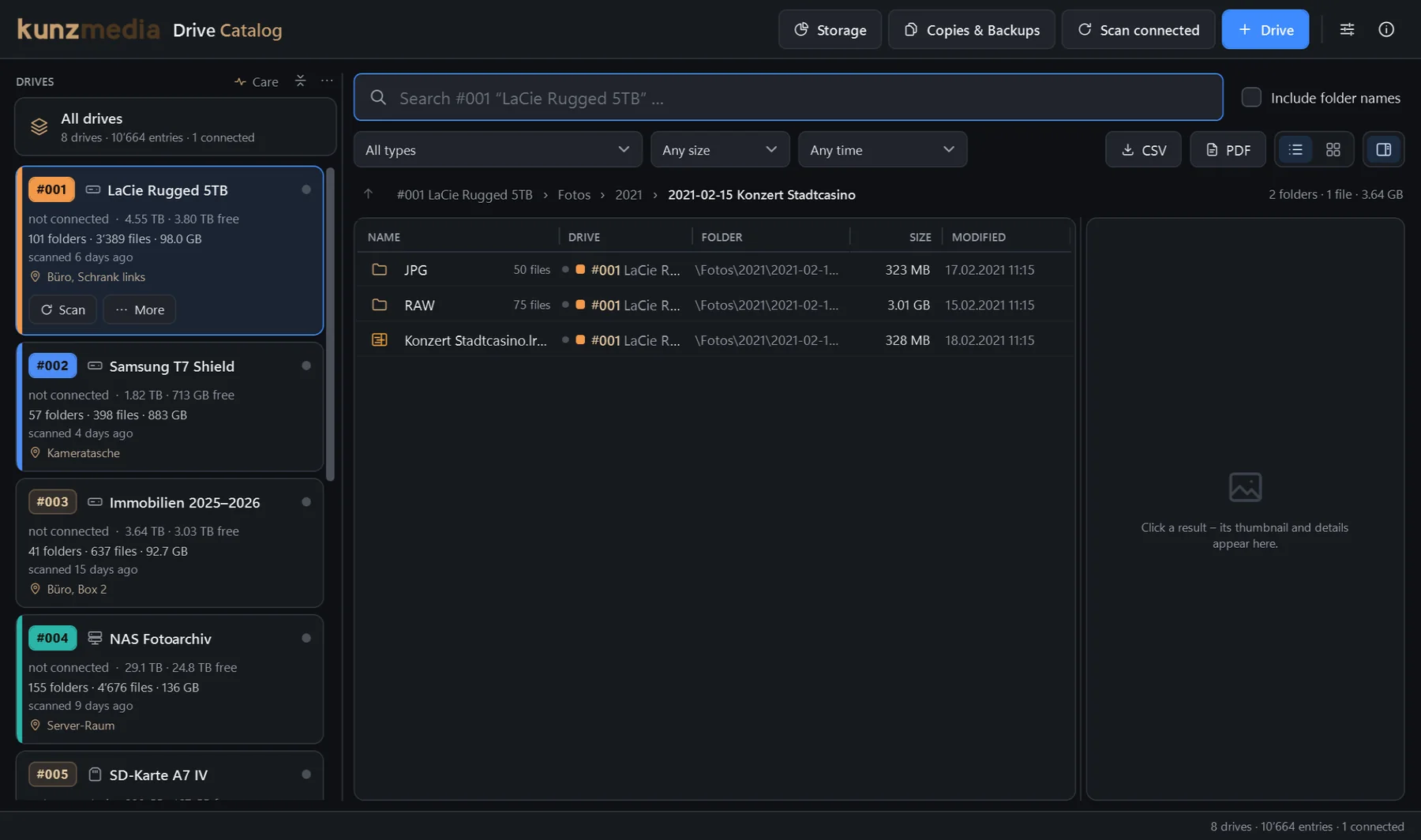
Try it yourself – with a sample catalog of seven drives. Just like in the app, the search covers every drive, including the ones that aren’t connected right now.
weddingPart of a name – case doesn’t matter, accents from Mac drives work toowedding 2023Several words: all of them must appear"Villa Riehen"This exact phraseinterview -rawWith a minus: leave this word out*.braw · IMG_????.*Wildcards across the whole nameFeatures
For everyone with more drives than overview: photographers, video productions, agencies, archives – and anyone who has ever searched five hard drives for one file.
#001, #002 … – automatically the next free number, plus name, type and location (“office, box 2”). The number goes on the drive as a label.
By the volume’s serial number – even if Windows hands out a different letter today. Network drives by their path, such as \\nas\photos.
The catalog lives on your PC. It searches every drive, even those that aren’t connected – the result tells you which drive the file is on and where that drive is kept.
Name, size, modified and created date of every file and folder – never the contents. That’s why scanning is quick, even with many terabytes.
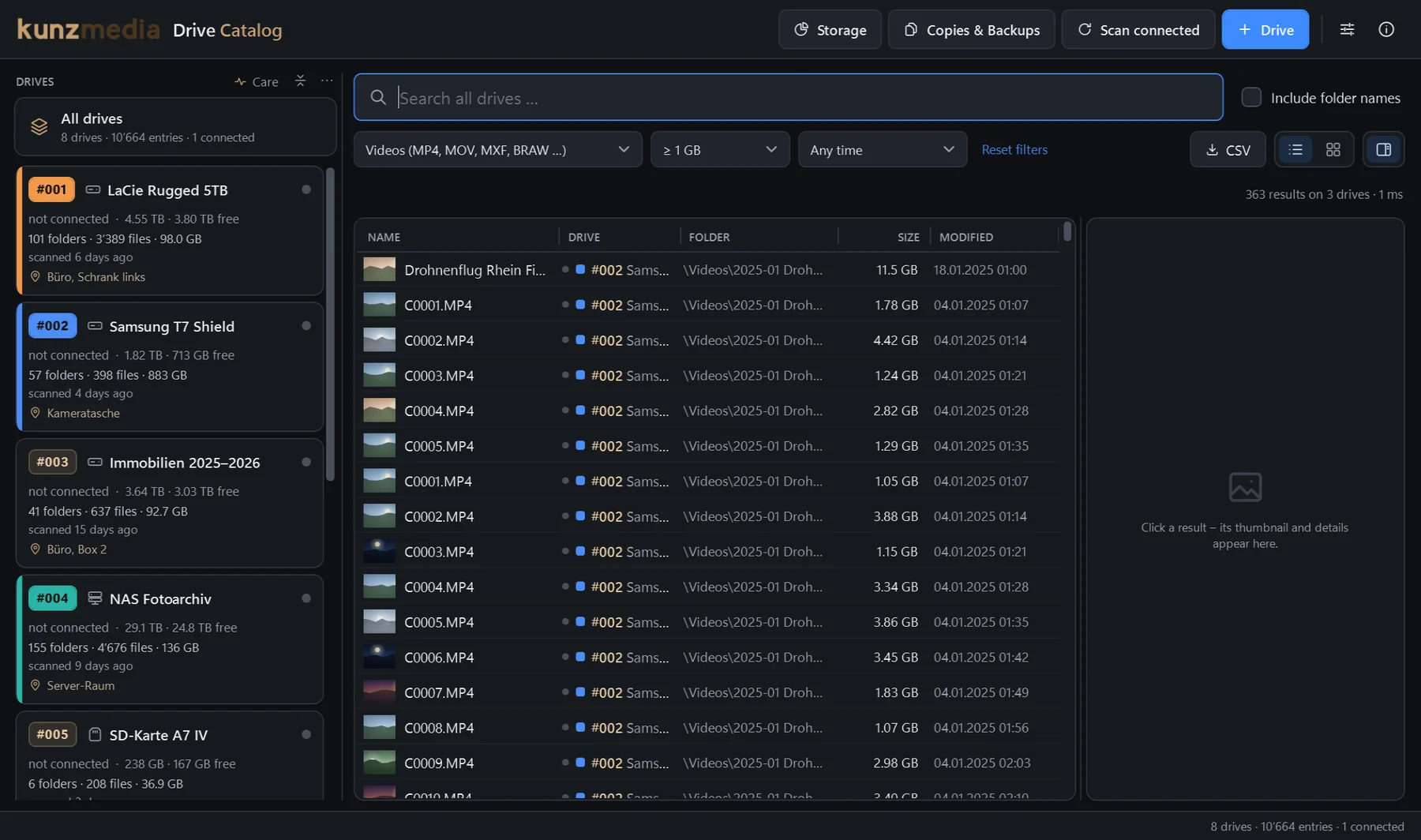
By type (RAW, images, videos, audio, projects, documents, archives), minimum size and period – say “all videos over 10 GB from 2024”. For folders, everything inside counts.
Open any drive in the catalog, folder by folder, with sizes and file counts – without connecting it. Typing inside a folder searches there first.
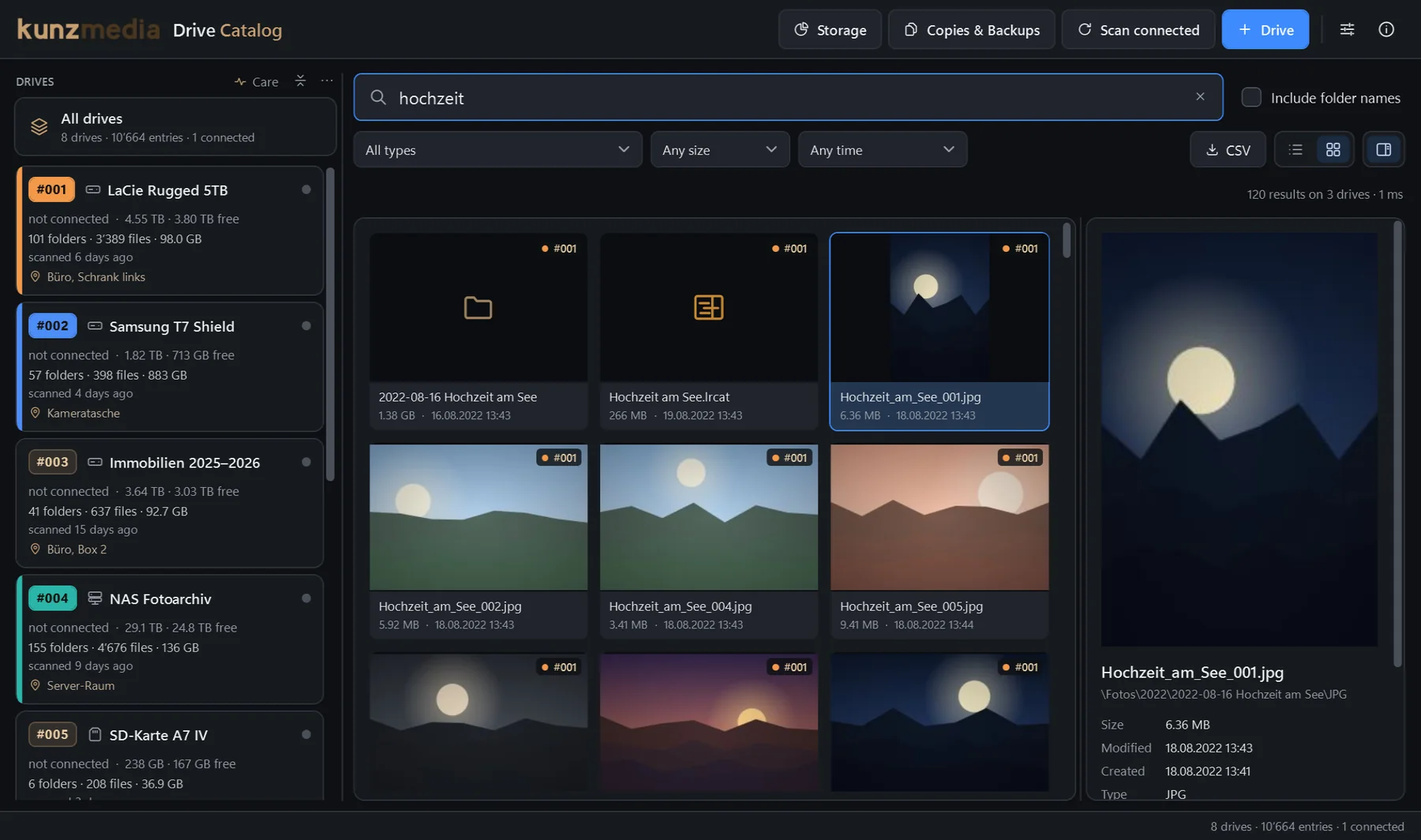
Photos, RAW, videos, PDF and SVG with a small picture – in the list, as tiles and large in the preview. Created once, visible without the drive.
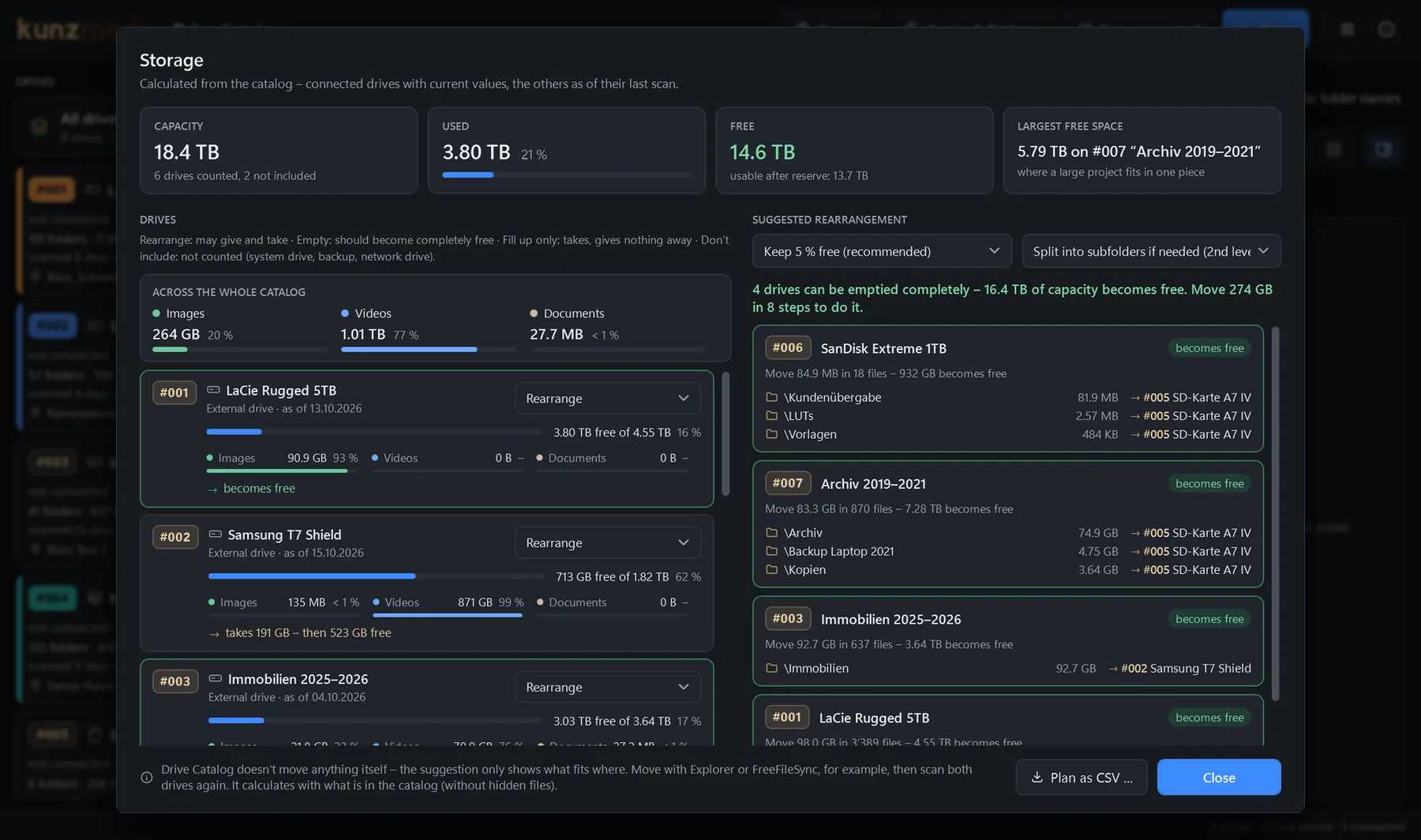
Free space on every drive at a glance – and a suggestion which folders fit where, so old drives become completely free. Result lists and plans as CSV for Excel.
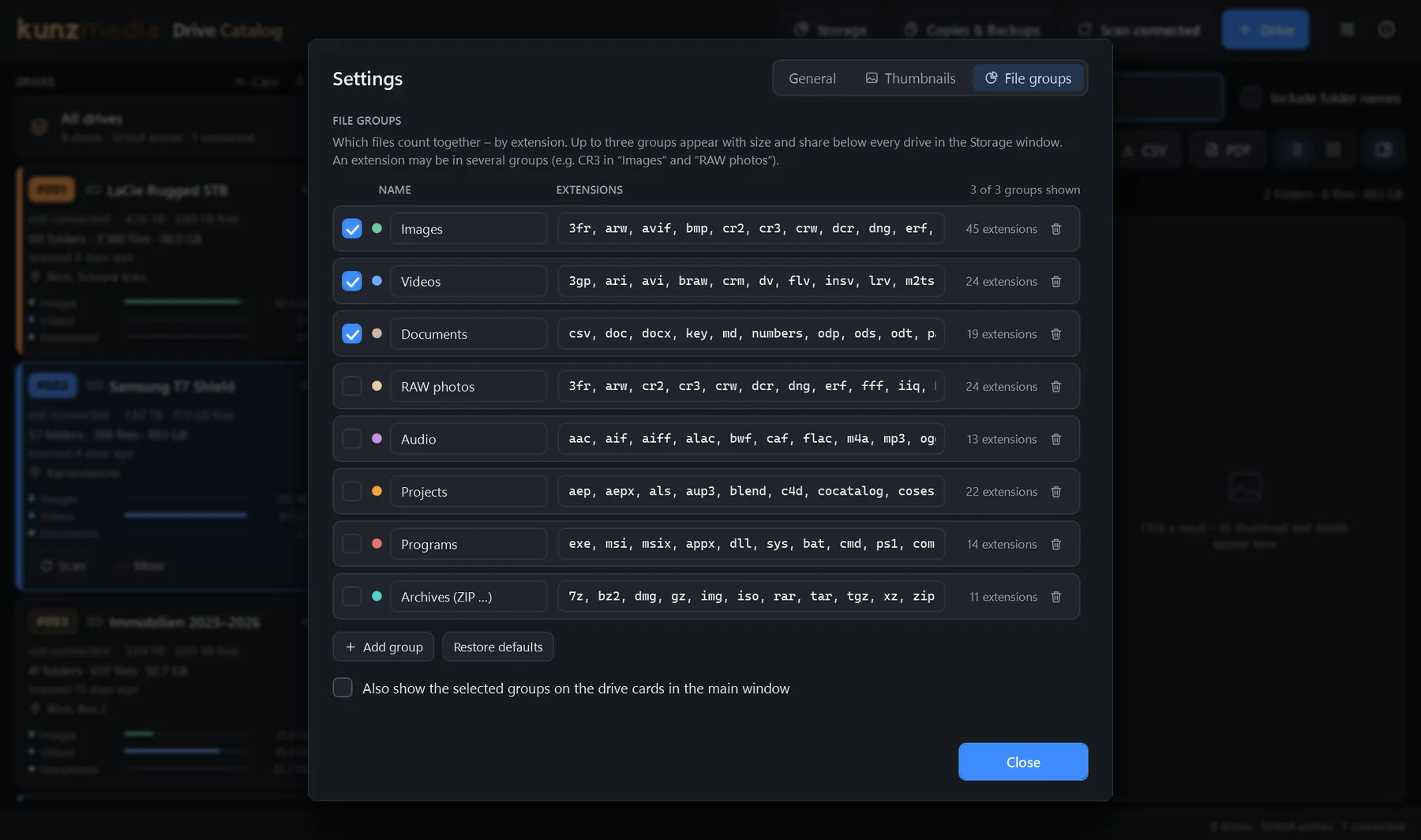
How much space images, videos and documents take up – per drive and across the whole catalog. You decide the groups and extensions, say “LUTs” with cube and 3dl.
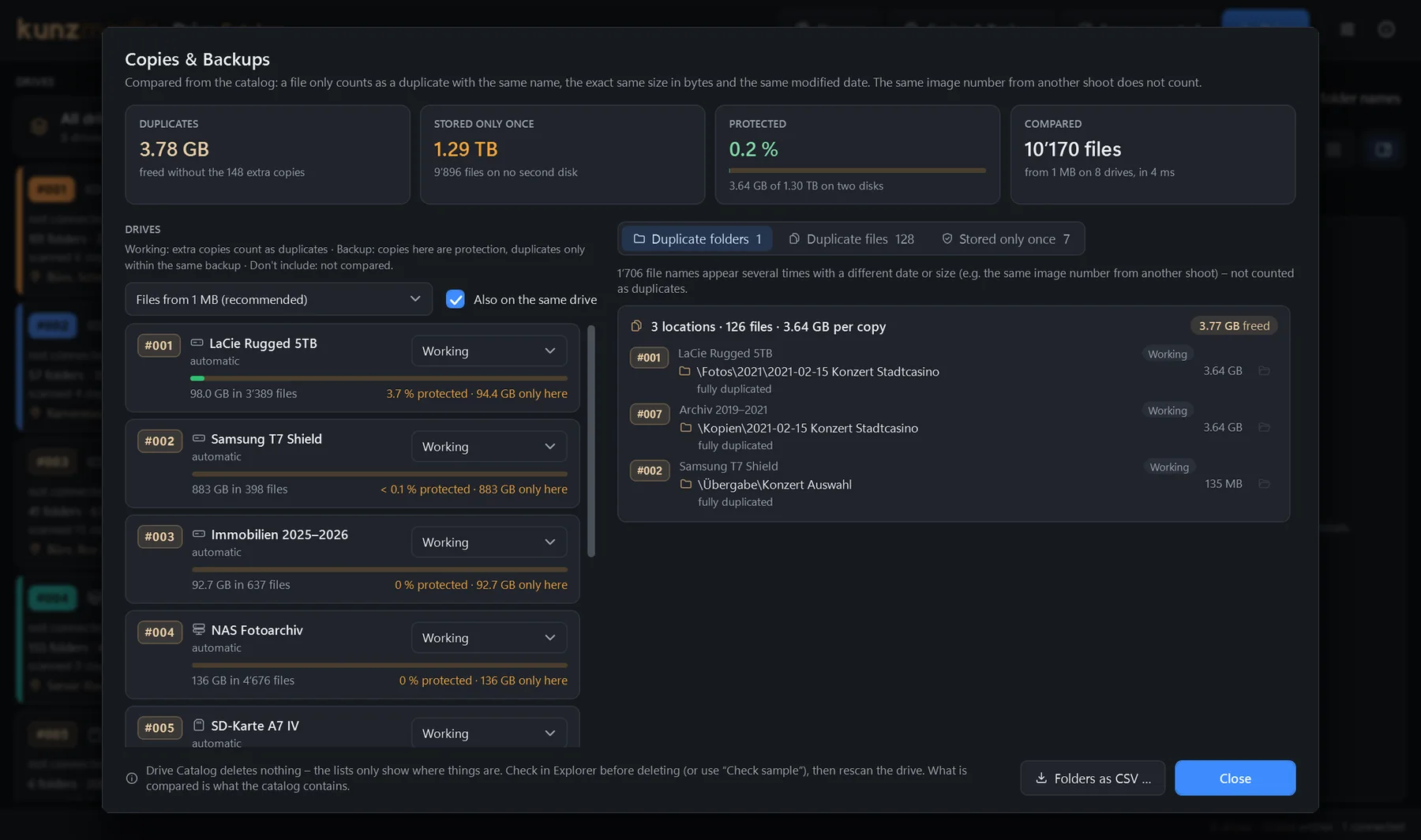
Which folders and files exist more than once and how much space that costs – and what isn’t backed up on a second drive. The same image number from a different shoot doesn’t count.
Every folder and file of a drive as a PDF – with your logo or your client’s, an overview with page numbers and bookmarks. Ideal when you hand over a hard drive.
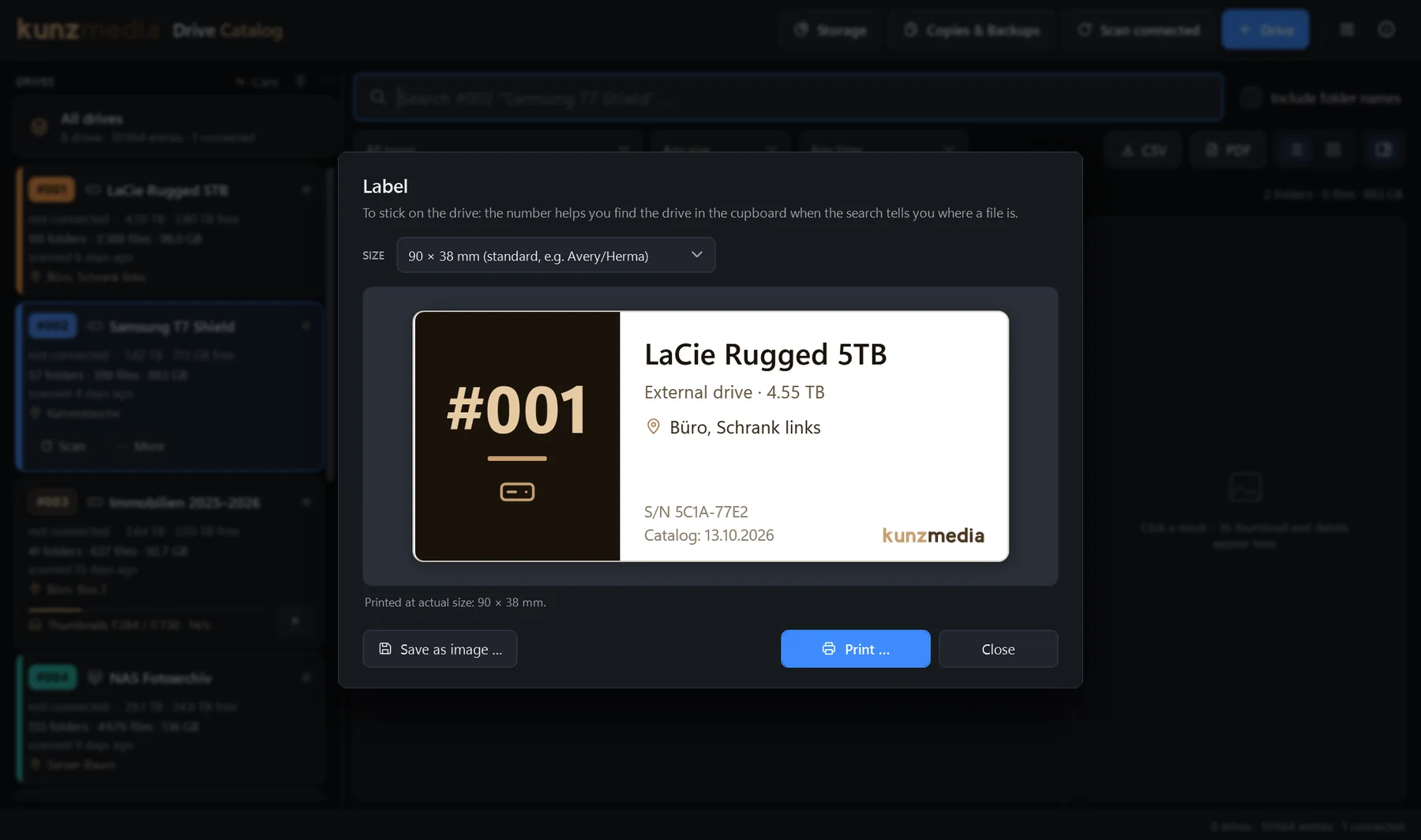
Number, name, capacity, serial number and location – in four sizes for common labels, or as a 300 dpi image for Brother and Dymo printers.
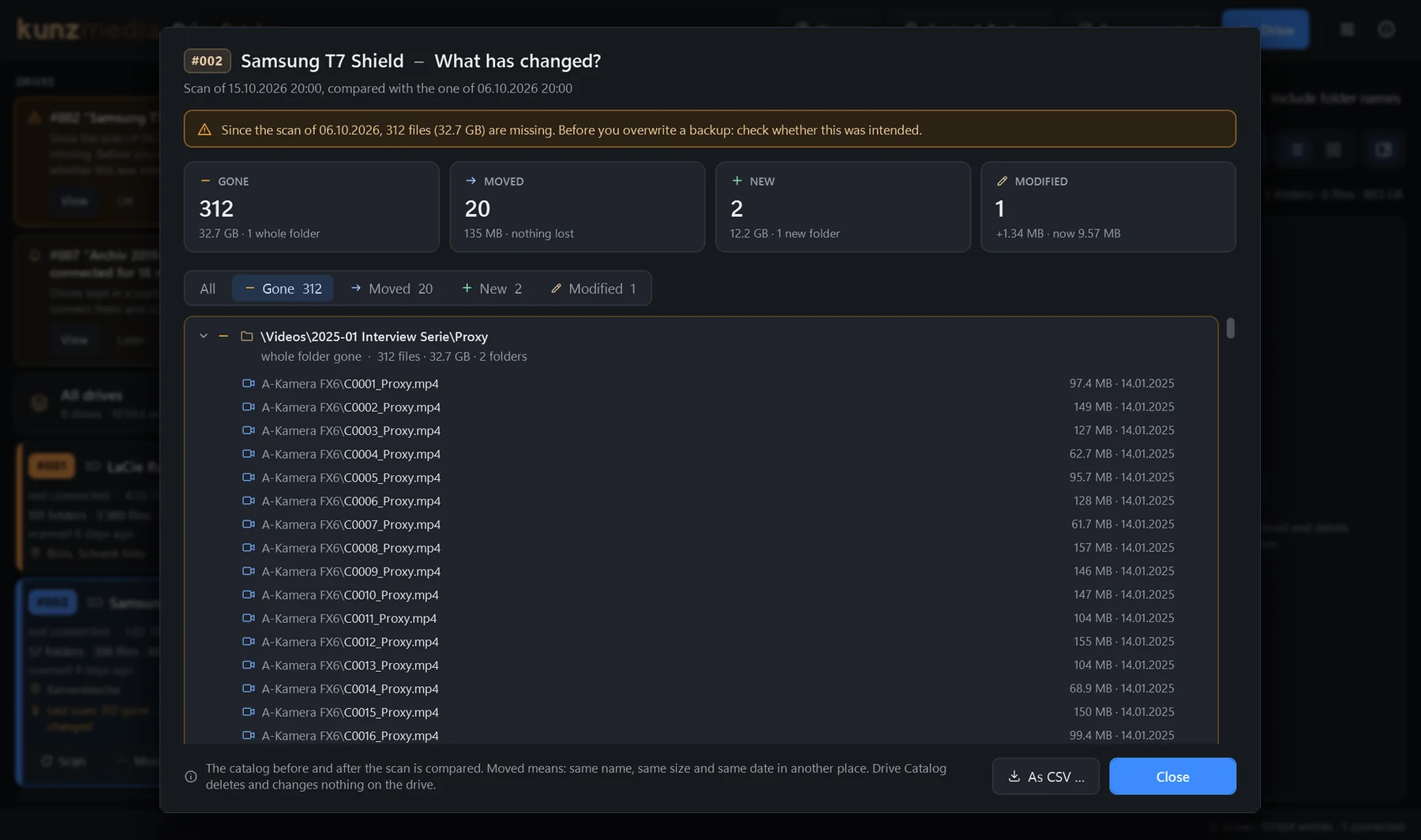
When you scan again: what’s new, what was only moved and what’s missing. If 300 files suddenly disappear, the program warns you – before you overwrite the backup.
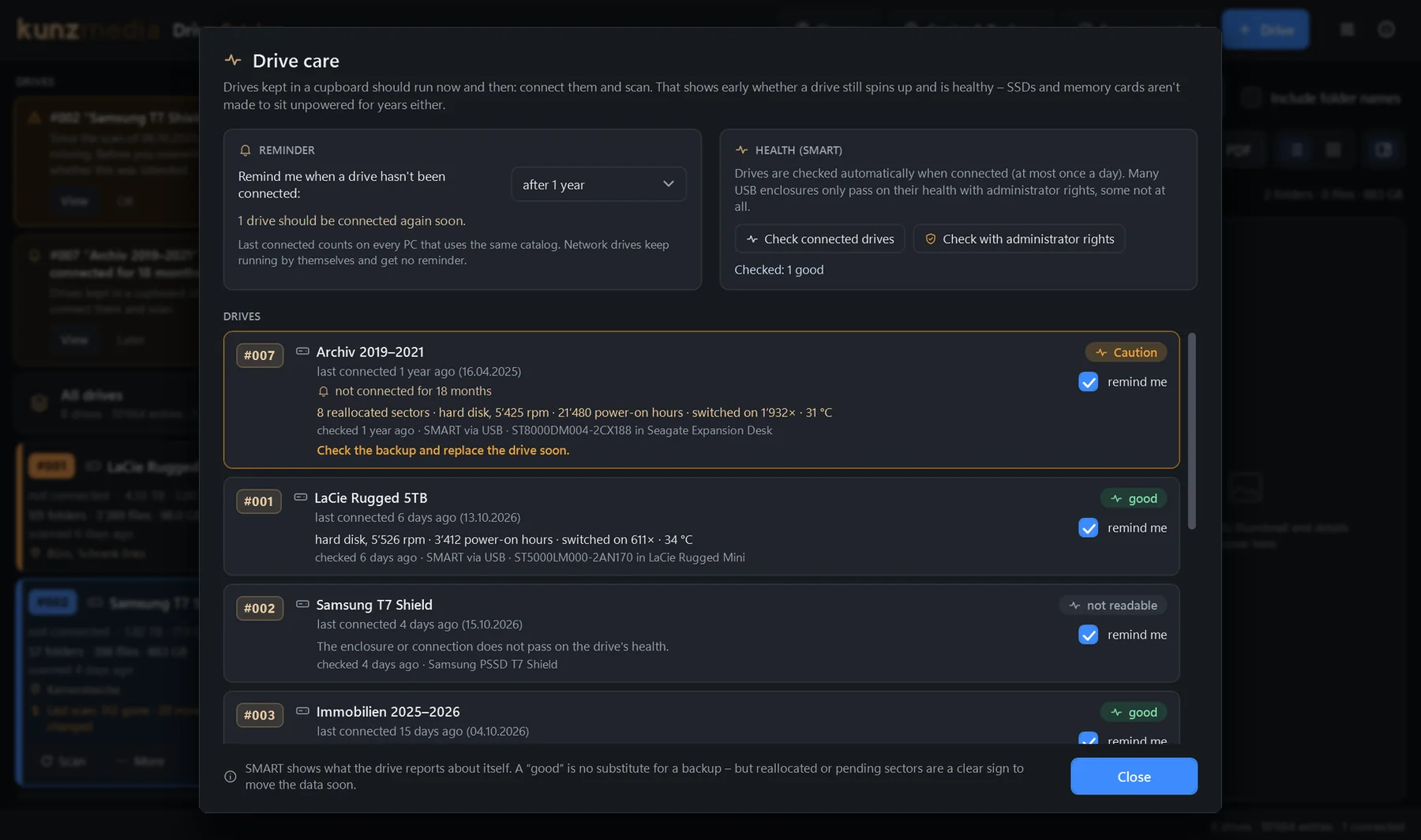
“#007 hasn’t been connected for 18 months.” Drives in a cupboard should run now and then – Drive Catalog reminds you after 6, 12, 18 or 24 months.
SMART when you connect: reallocated sectors, temperature, power-on hours, wear – with many USB enclosures too. If a drive starts to fail, it says so at the top of the window.
Drag the drives on the left to wherever they belong – the current job at the top, the archive at the bottom, whatever their number. Each card can be collapsed on its own – then just number, icon and name.
Nine colours for the number on the card, plus a coloured stripe and a small square next to every result. You see at a glance what belongs to which job or client.
Turn two catalogs into one – say, the laptop’s and the office’s. Drive Catalog hands out new numbers where they clash and recognises the same drive by its serial number.
No account, no cloud, no telemetry. The catalog is an ordinary folder – on your PC, on the NAS or in OneDrive. Several PCs can share it.
In use

Drives
Windows hands out drive letters as it sees fit – E: today, G: tomorrow. Drive Catalog recognises every drive by its serial number and notices straight away when it’s connected or unplugged.
Drive list
The number tells you which drive it is – not how important it is right now. That’s why you can arrange the list on the left freely: drag the current job to the top and the archive to the bottom. A colour per drive shows at a glance what belongs together – orange for ongoing projects, say, and blue for the backups.
Scanning
Drive Catalog records the name, size and dates of every file and folder. It only reads the directory, never the file itself – whether a video is 200 MB or 200 GB makes no difference. All that counts is the number of files.
Schematic: scanning time follows the number of files, not the amount of data. How fast it actually is depends on the drive – over the network it takes longer than via USB.
Thumbnails
Photos, RAW files, videos, PDF and SVG get a small thumbnail. It is created once while the drive is connected – in the background and so gently that you can keep working. After that, the catalog shows the picture even when the drive is long back in the cupboard.
Measured on a mini PC with an external SSD: RAW ≈ 15 ms, JPG ≈ 45 ms, video ≈ 0.25 s per image. Hard drives and the network take longer – the self-test measures it on your own PC.
Copies & backups
The same photos on three drives, a folder called “Copy of copy” – and other things exist only once. Drive Catalog compares the whole catalog: what is stored several times and how much space that costs, and what isn’t backed up on a second disk.
What has changed?
When you scan a drive again, Drive Catalog compares it with the last time: what’s new, what was only moved and what has disappeared. If a lot of files are suddenly missing, it says so right at the top of the window – before you overwrite your backup with an incomplete copy.
Drive care
Drives kept in a cupboard should run now and then. Drive Catalog knows when each drive was last connected and reminds you – for example “#007 hasn’t been connected for 18 months.” When you connect a drive, it reads its health (SMART), so you see early if a drive is starting to fail.
1 drive should be connected again soon. #003 sits in a USB enclosure that only passes on SMART with administrator rights.
Labels
The search says “it’s on #003” – the label shows which drive that is. With number, name, type, capacity, serial number, location and the date of the catalog.

Printed at actual size: 90 × 38 mm – or saved as a 300 dpi image for your label printer’s software.
Table of contents as PDF
For handing over to clients or for the archive: a PDF with every folder and file of a drive or folder – with your logo, an overview of the main folders with page numbers, and bookmarks. Straight from the catalog, the drive doesn’t need to be connected.
TABLE OF CONTENTSSaturday, 17 October 2026
18 pages · the first files of each folder, then “… and 38 more files (38 JPG)”. The page numbers in the overview are clickable in the PDF.
Shared catalog
The catalog is an ordinary folder – two small files per drive. Put it on the NAS or in OneDrive and the office PC, the laptop and the editing suite all see the same catalog. Whatever another PC has scanned is picked up automatically.
Network Internet (OneDrive)
Merge catalogs
Scanned on the laptop while on the road, a separate catalog at the office – or two colleagues with one each: Drive Catalog brings the drives of the other catalog into this one, with their contents, changes and thumbnails. A preview shows beforehand what will happen to each drive.

Good to know
What Drive Catalog can’t do – or only under certain conditions.
Windows 10 and 11 on a 64-bit processor (x64). Everything it needs is included – no separate .NET installation required. It installs with a setup – “Install for me only” works without administrator rights. Interface in English and German.
To create them, the drive has to be connected – afterwards it doesn’t. About 12 KB per image – 100,000 photos take a little over 1 GB. The search goes by names; camera data (EXIF) and text inside documents are not read.
The catalog shows a drive as it was at the last scan – every card says when that was. After changes, scan again; all connected drives take a single click.
Windows can’t read APFS or Mac OS Extended drives without extra software – so neither can Drive Catalog. exFAT and NTFS work fine, including accented characters from Mac file names.
To scan, the NAS has to be switched on and reachable; to search afterwards, it doesn’t. Scanning over the network takes longer than over USB.
To keep the search this fast, the catalog is held in memory: about 150 bytes per entry, roughly 150 MB for a million files.
More results are counted but not all of them are shown – refine the search or save it as CSV; the file contains every result.
Several PCs may share and search the same catalog. A given drive, however, should only be scanned by one PC at a time.
Drive Catalog shows where a file is, what is duplicated and what isn’t backed up, and suggests where things fit – it doesn’t copy, move, delete or back up anything itself. That’s still the job of Explorer, FreeFileSync and your backup software.
What’s compared is what the catalog contains, not the file contents. Two different files with the same name, the exact same size in bytes and the same time are rare – two identical cameras, say. The check sample compares the contents on connected drives.
In copies & backups and in storage, the Windows drive is left out automatically, as are entries that sit inside another entry on the same disk – otherwise everything would be a duplicate. One click includes it.
“All files” quickly runs to hundreds of pages for large photo archives – the dialog tells you how many first. “Folders and files (shortened)” or fewer levels stay handy. The Windows font is embedded, with only the characters that are used.
“What has changed?” compares two scans. Anything that came and went in between isn’t visible. If a file is moved and changed at the same time, it shows up as gone and new.
Many USB enclosures only pass on the drive’s health with administrator rights, some not at all – then it says so. Memory cards and USB sticks usually report nothing. A NAS shows its own health.
SMART shows what the drive reports about itself. A drive without findings can still fail – but reallocated or pending sectors are a clear sign to move the data soon.
Order and colours are stored in the catalog. If you share it with other PCs, you change them for everyone – only which cards are collapsed is remembered by each PC. Newly added drives come after the ones sorted by hand.
If a drive gets a new number when merging, the old label is still stuck on it. Afterwards these drives show “Label” – print a new one and stick it on.
If the same drive is in both catalogs, Drive Catalog takes over the newer state as a whole – two states aren’t mixed. Merging only starts when no drive is being scanned.
Download
Drive Catalog is free. Enter your email address – you’ll get a personal download link right away.
Thumbnails for videos: MP4 and MOV work straight away. For MXF, MTS, ProRes, HEVC and the like, also install the free ffmpeg – download from ffmpeg.org (under “Windows”) or in the command prompt winget install Gyan.FFmpeg. Drive Catalog finds it by itself, otherwise use Settings → Thumbnails “Choose ffmpeg.exe …”.

KunzMedia
Drive Catalog is a tool by KunzMedia – photography, video, podcast and livestream. Built for our own archive – for large amounts of data. Ask us about the software or a demo.